





Why the Hide Apps Option Disappears on Redmi Phones
You open App lock and the Hide apps switch that used to sit next to it is gone. That usually doesn’t mean Xiaomi removed it. Locking an app and hiding its icon are two different settings, and App lock can stay while the hiding switch lives somewhere else.
On supported models, app hiding sits in the standalone Security app. Menu names also differ between MIUI and HyperOS, so if your screens don’t match this guide, check your model and full software build under Settings > About phone.
Short version:
- Open the Security app (not Settings) and look for Hide apps or Hidden apps.
- If you hid apps before, spread two fingers apart on the Home screen to open the hidden folder.
- If the entry is still missing, check for updates, then contact Xiaomi Support with your exact build.
Method 1: Find Hide Apps in the Security App
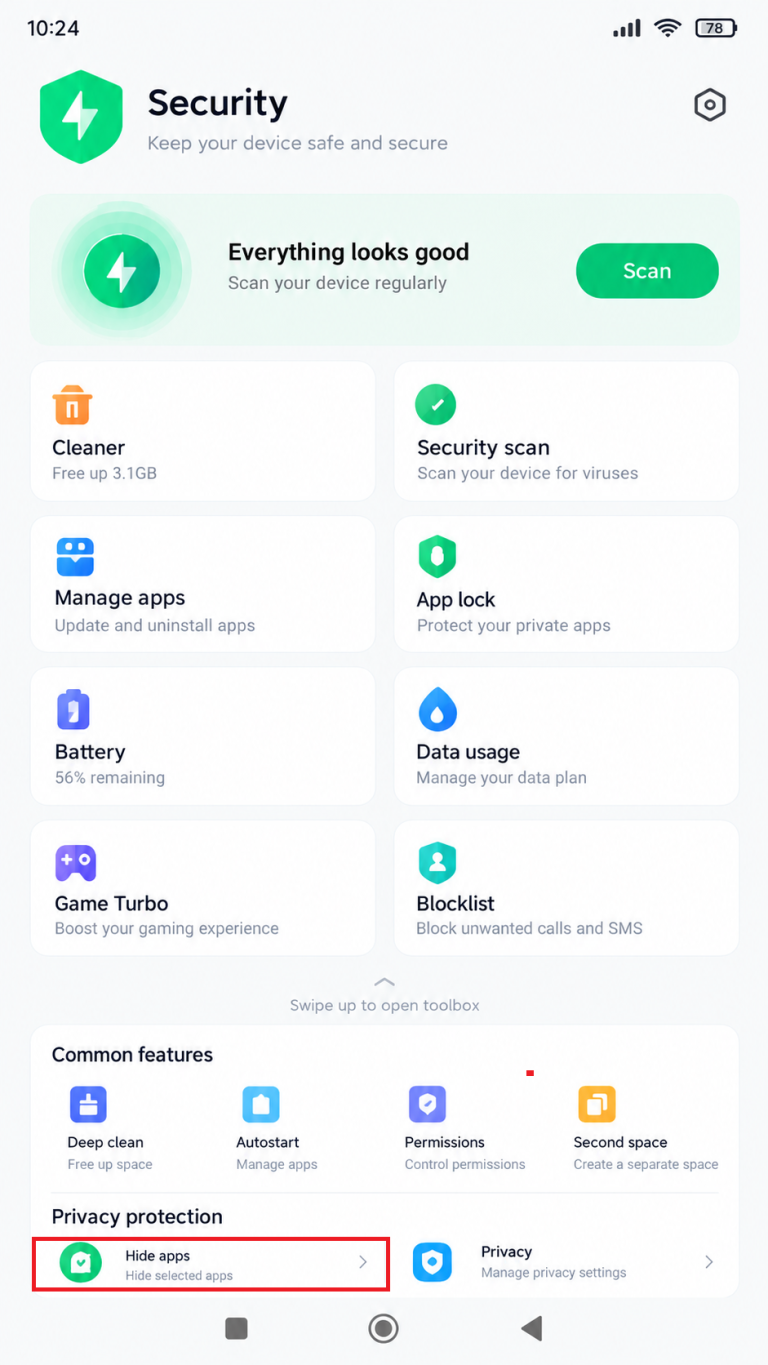
Xiaomi’s Redmi 13C instructions put Hidden apps lower down on the Security screen. Other versions call it Hide apps and file it under Common features or Privacy protection.
- Open the Security app, the shield icon on Home or in the app drawer. It is a separate app from the Security or Privacy section inside Settings.
- Scroll down. If you see Swipe up to open toolbox, swipe up to reach the remaining tools.
- Look for Hide apps or Hidden apps.
- If Common features has an Edit or pencil button, tap it. Add Hide apps only if it shows up in the available shortcuts, then save.
- Open the page and switch on each app you want to hide. Switching it off unhides the app.
Editing the shortcuts can bring back a shortcut that was simply removed. It can’t add a feature your build doesn’t have. If Hide apps isn’t in the editor either, fiddling with App lock won’t make it appear.
If the page opens but one app is missing from the list, that’s a separate problem from the whole control being gone.
Method 2: Open Apps You Already Hid
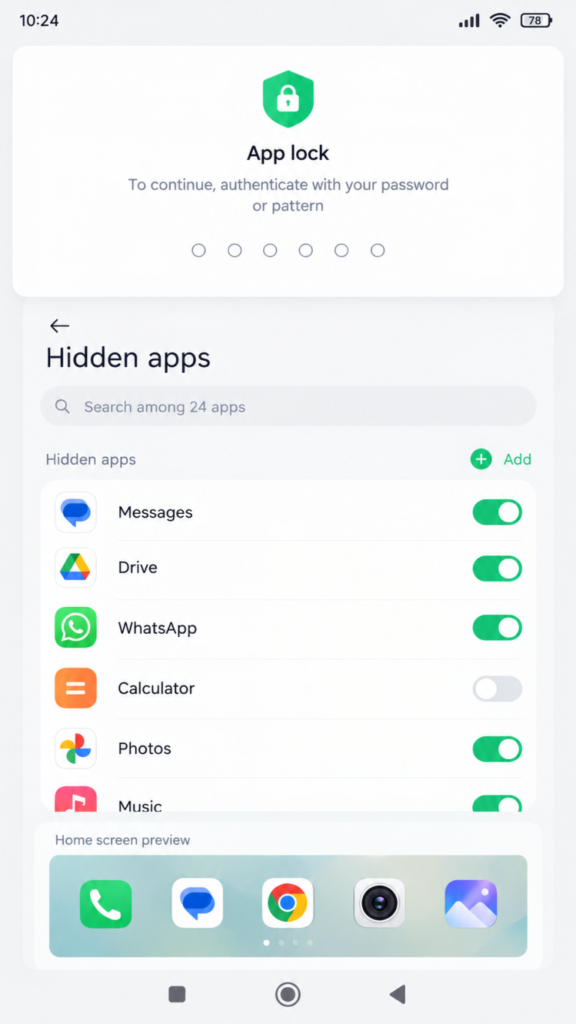
Apps you hid earlier can still be reachable even when you can’t find the setting. Xiaomi documents a two-finger gesture on the Home screen. It opens the hidden folder, but it won’t bring back a missing Security entry.
- Go to the Home screen, not the app drawer.
- Put two fingers on an empty spot and spread them apart, like zooming into a photo.
- Enter your App lock credential if asked, then open the app you want.
If the Home-screen editor opens instead, you pinched inward. The hidden-apps gesture goes outward. And if nothing happens at all, that alone doesn’t prove your phone lacks Hide apps.
Opening the folder doesn’t unhide anything. To put an icon back on Home, turn its switch off under Security > Hide apps. If the switch is already off and the icon is still missing, check the installed-app shortcut settings.
One more thing: hiding an icon is not password protection. Where available, the settings button inside Hide apps has separate App lock and Hide notifications controls. A password prompt means access is restricted. It doesn’t mean the menu is broken.
Method 3: Test With the Built-in Home App
A launcher is the app that draws your Home screen. Xiaomi’s gesture may not work in a third-party launcher such as Nova, so a quick test with the stock one can rule that out. It can’t add a Security feature your phone doesn’t support.
- Search Settings for Default launcher, or go to Settings > Home screen > Default launcher.
- Note which launcher you use now, then switch to System launcher if it’s offered.
- Go back to Home and try the outward spread again.
- Switch back to your old launcher if you prefer it.
Keep both launchers installed and don’t clear their data. If the gesture only works on the stock Home screen, use that one whenever you need the hidden folder.
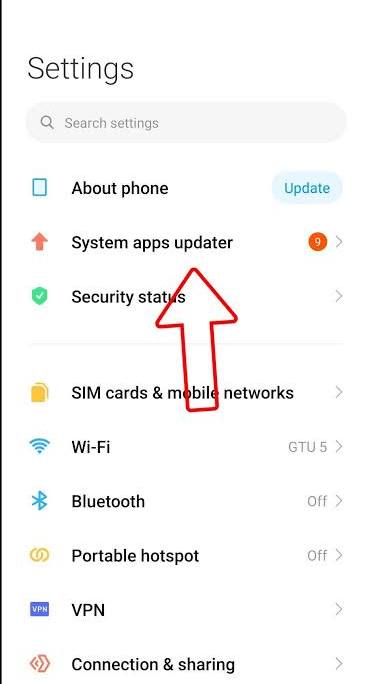
Method 4: Check for Official Updates
This is a check to run before you report the problem, not a guaranteed fix. Stick to Xiaomi’s built-in updaters. Don’t install a Security or launcher package made for a different build.
- Open Settings > System app updater (or search for it) and look for Security and System launcher updates.
- Back up anything important.
- Go to Settings > About phone, tap the HyperOS or MIUI version panel, and check for a system update.
- Install only what’s offered for your phone. Keep it charged, stay on Wi-Fi, and don’t interrupt the install.
- Restart normally, then check Security and the Home-screen gesture again.
If the updater itself says it isn’t responding, that’s its own fault. It doesn’t show that Hide apps was removed.
What Not to Do
- Don’t clear Security or System launcher data. It can reset your privacy settings or your Home-screen layout.
- Don’t factory reset, downgrade system apps, change region, or sideload unofficial APKs just to get one menu entry back.
If Hide Apps Is Still Missing: Contact Xiaomi
Open Settings > Feedback (or Services & feedback), or contact Xiaomi Support in your country. Include:
- Your exact Redmi model, full MIUI or HyperOS build, and sales region
- Whether Hide apps ever worked, when it vanished, and whether the hidden folder still opens
- Your default launcher and, if App info shows them, the Security and launcher version numbers
Ask whether your software includes app hiding and where the control should be. Blur identifiers and private app names in screenshots. A shot of the Security menu is enough, and you don’t need to show your hidden folder.
If Xiaomi says the feature isn’t available on your build, App lock still restricts access to apps. It just won’t remove their icons.
Other Privacy Tools on Xiaomi Phones
If Hide apps isn’t there, a few other Xiaomi features cover part of the same need.
Second space and Dual apps give you a separate profile or a second copy of an app, depending on your model and software. If you want sensitive apps fully apart from your daily ones, Second space is the closer match.
Xiaomi Cloud is worth setting up before any update or troubleshooting, since it holds your backups. It also handles lost-device features such as Find Device. Pair that with Xiaomi Tag if you want to locate a lost phone, which matters more when it holds private apps.
Updates matter too. Keeping Security, System launcher, and the OS current keeps these features consistent, and our HyperOS 4 tracker shows which devices have received which build.
If you own more than one Xiaomi device, check each one separately. Settings on a Xiaomi Pad or Watch can differ from your phone even on the same account, and the Xiaomi Home app manages Mijia smart-home devices on its own, apart from anything you hide on the phone.
FAQ
Is Hide apps in Settings or in the Security app?
On most Redmi phones it’s in the Security app. Some versions also show hide controls inside App lock settings.
How do I open hidden apps on a Redmi?
Spread two fingers apart on the Home screen and enter your App lock credential if asked.
Does hiding an app lock it?
No. Hiding removes the icon. Locking needs a credential. Use both if you want both.
Is a missing Hide apps option a bug?
Not always. It may be unsupported on your model, region, or software build. Xiaomi Support can confirm.