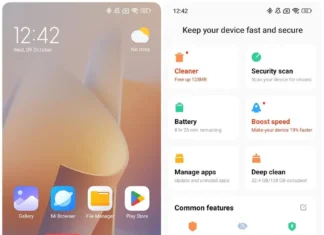






Battery drains fast, storage fills up, and ads pop up in places they shouldn’t. Plenty of Xiaomi, Redmi and Poco owners complain about the same things, and the hardware is usually fine. The real culprit is the preinstalled apps and ad services in HyperOS. Most can be switched off or removed in a few minutes.
Why HyperOS Has So Many Ads and Preinstalled Apps
HyperOS is Xiaomi’s Android-based interface. It replaced MIUI, debuting on the Xiaomi 14 series in late 2023, and runs on current Xiaomi, Redmi and Poco phones. Many older models got it through updates, though some low-end devices still run MIUI. Like MIUI, it ships with a lot of Xiaomi apps and services. Nick Papanikolopoulos reported, and KompasTekno summarized, that some users find the number of preinstalled apps and ads excessive.
The costs add up. Background services and ad recommendations use RAM and battery, preinstalled apps eat storage, and ad personalization relies on your usage data, which is a privacy concern.
How many ads you see depends on your region and software version. Phones sold in China and some emerging markets usually show more than European units.
How to Turn Off Ads in HyperOS
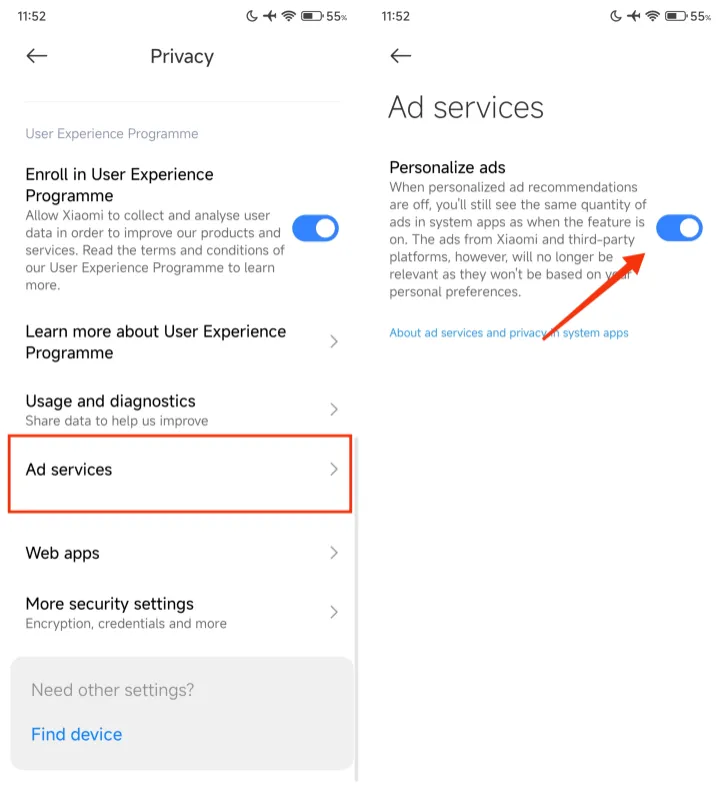
1. Disable system-level ad services
Menu names vary between HyperOS versions and regions. On most phones these options are under Settings > Passwords & security.
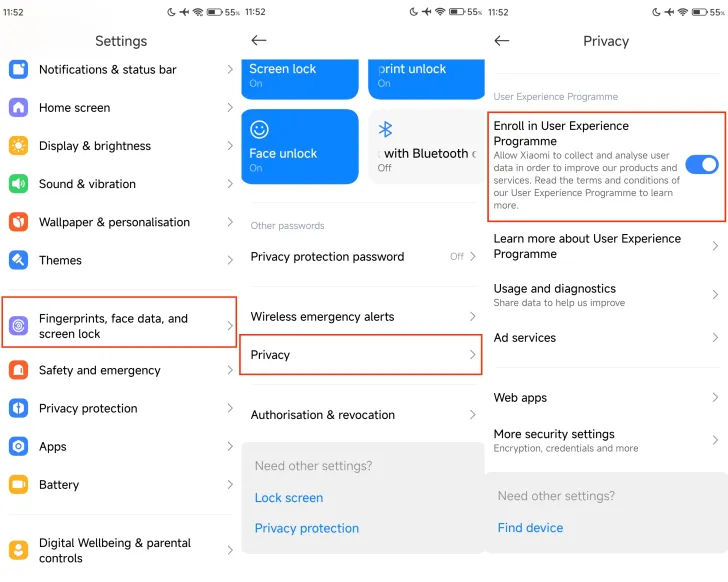
- Go to Passwords & security > Privacy.
- Open Ad services and turn off Personalized ad recommendations.
- Turn off User experience program.
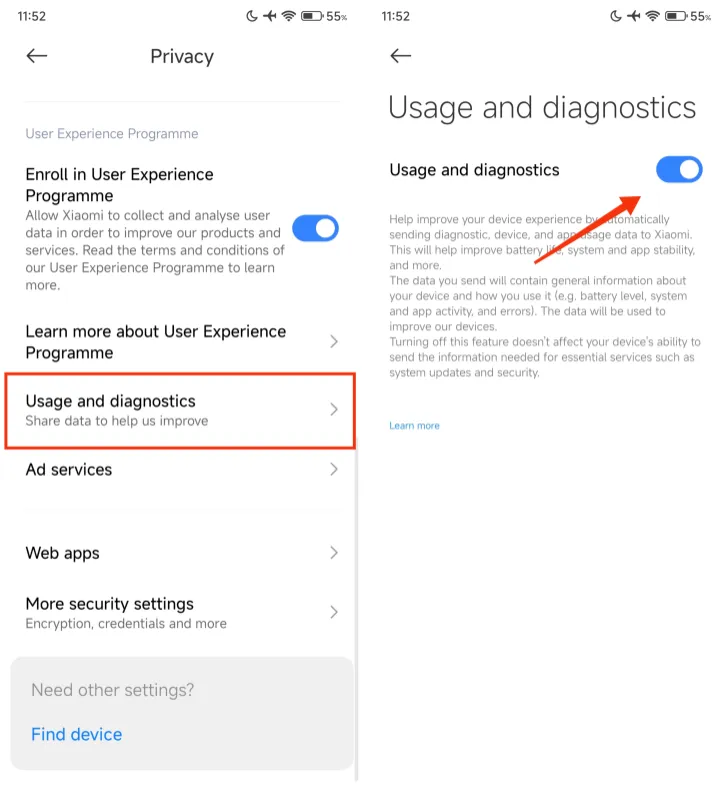
- Turn off Send diagnostic data automatically (called “Usage and diagnostics” on some builds).
- Go back to Passwords & security > Authorization & revocation and disable msa (MIUI System Ads).
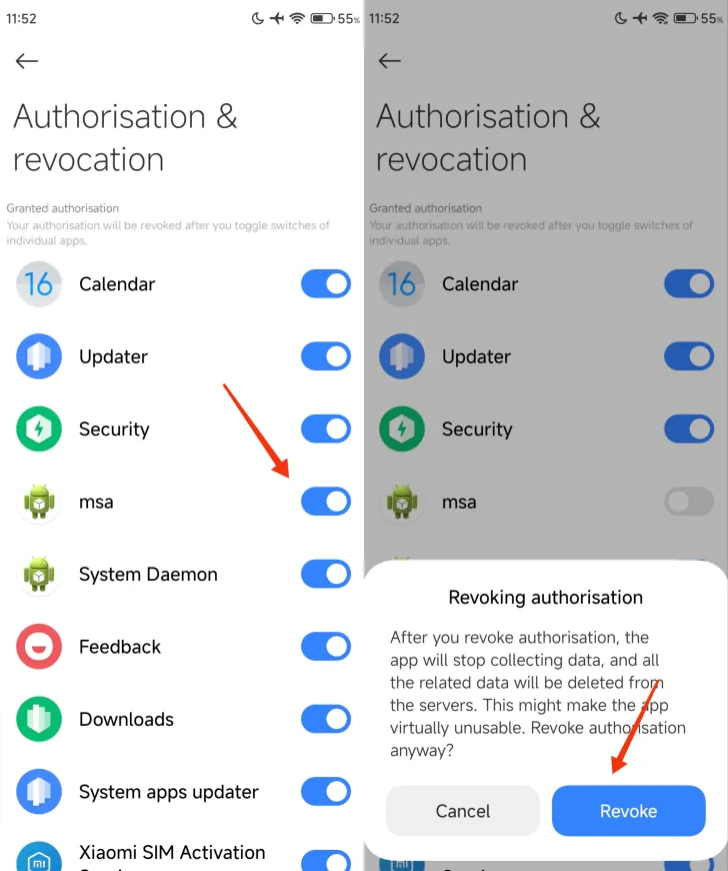
2. Turn off ads inside system apps
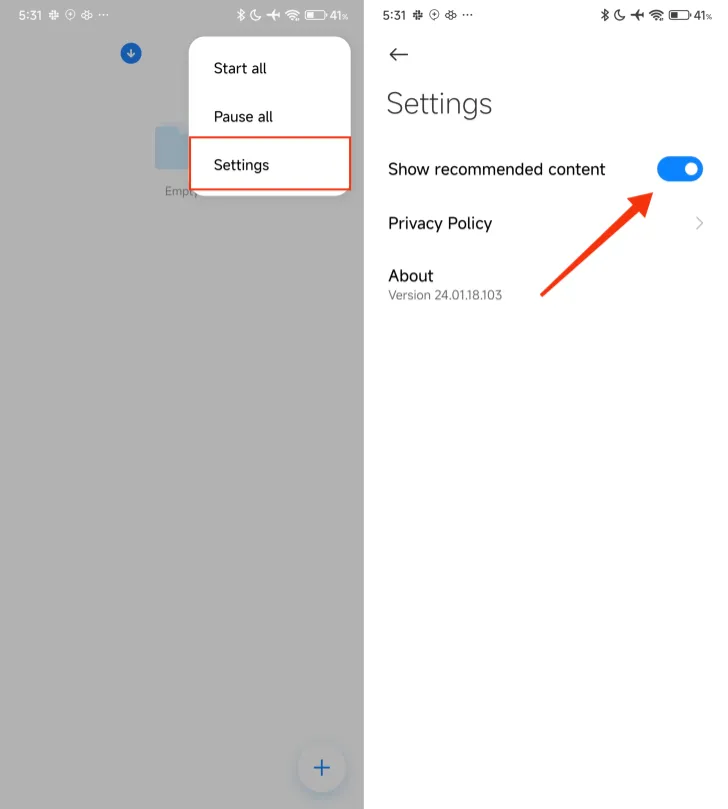
Ads and recommendations can show up in Security, Music, Mi Browser, File Manager, Themes and Downloads. Open each one, go to its Settings, and turn off anything labeled Show ads, Recommendations or Content recommendations.
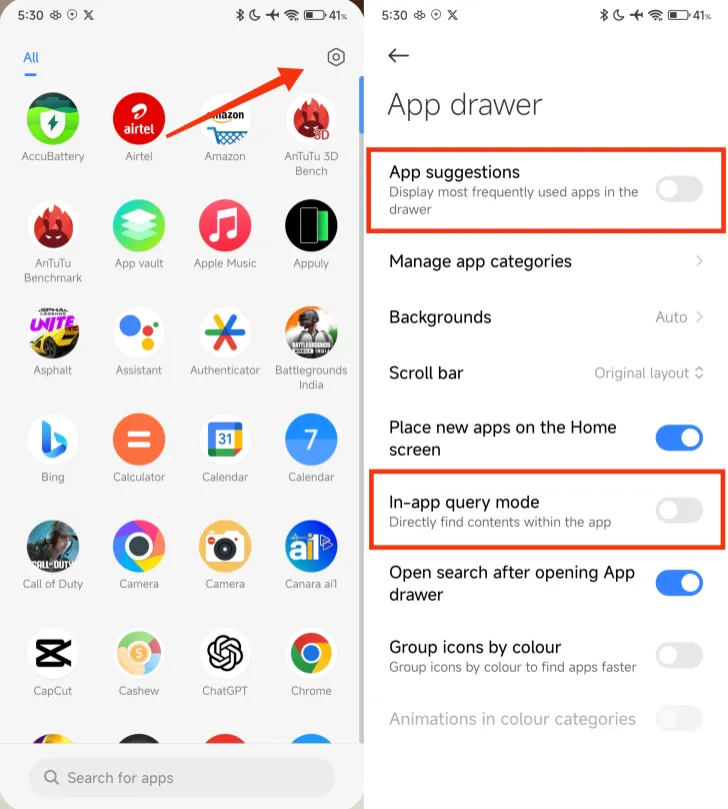
3. Turn off app recommendations in the app drawer
- Open the app drawer.
- Tap the gear icon at the top right.
- Turn off App recommendations.
Home-screen folders have a similar option. Open a folder, tap its name, and turn off Recommended apps if it’s enabled.
4. Disable Wallpaper Carousel
Wallpaper Carousel can show promotional content on the lock screen and keeps running in the background. Go to Settings > Lock screen and switch it off. Or go to Settings > Apps > Manage apps, tap the three-dot menu, choose Show all apps, find Wallpaper Carousel and select Disable or Uninstall. Not every region has this app, so skip the step if you can’t find it.
5. Adjust the Security app scan
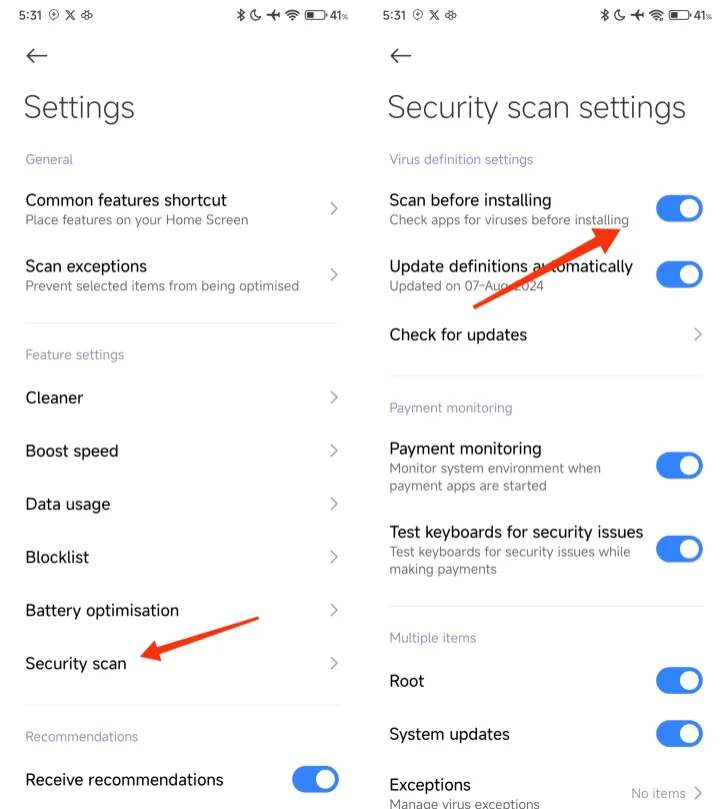
The Security app can scan apps before installation and sometimes shows recommendations while it does. Go to Security > Settings > Security scan and turn off Scan before installation.
One catch: this also removes a layer of protection against malicious APKs. If you install apps from outside Google Play or GetApps, leave the scan on and disable only the recommendations.
6. Cut notifications from apps you don’t need
Go to Settings > Notifications & Control center > App notifications, pick the app, then turn off notifications entirely or just the promotional categories.
How to Remove Bloatware from HyperOS
Bloatware is preinstalled software you never use. Removing it frees storage and cuts background activity.
From the home screen: press and hold the app icon, tap Uninstall (or the minus icon), then confirm with Remove.
From Settings: go to Settings > Apps > Manage apps, select the app and tap Uninstall.
If there’s no Uninstall option: some core system apps can’t be removed without root access or developer tools. Tap Disable or Force stop where available, clear the app’s cache and data, and restrict its background activity in the battery settings.
Don’t remove anything you don’t recognize. Some system components look like bloatware but handle calls, messaging or updates.
Other Settings That Help
- Battery: set background activity to Restricted for rarely used apps (Settings > Apps > Manage apps > [app] > Battery saver).
- Storage: check Settings > About phone > Storage to see what takes the most space, then clear cache in unused apps.
- Updates: install the latest HyperOS update. Xiaomi has trimmed preinstalled apps and ad placements in some releases, but it varies by region.
Does This Help the Rest of Your Xiaomi Setup?
Mostly yes. If you control an air purifier, robot vacuum or other Mijia appliance through Xiaomi Home, a phone with free storage and fewer background services keeps the app running more smoothly. The same goes for Xiaomi Pad, Watch, Band and TV features that rely on the phone.
Ad and diagnostic settings are tied to your Xiaomi account, so check the privacy options on your tablet and wearables too. Heading out on a trip? Our HyperOS travel tips and Xiaomi Tag post cover the battery side. And if you’re weighing a switch to Samsung, our HyperOS vs One UI comparison shows how each handles bloatware and ads.
Quick Recap
Turn off the ad services, switch off recommendations in system apps, and disable or remove what you never open. Check the Security scan setting before you turn it off, since it affects how safe your installs are.