









To Install Xiaomi Stable ROM Using Fastboot Update, A Windows PC/laptop will be needed for the following steps. Make sure that your device is fully charged or has enough power for this process. This guide will help you update your device to the latest OS ROM version. All user data will be purged in this process. Please back up your data and think twice before proceeding.
Steps to Install Xiaomi Stable ROM Using Fastboot Update
STEP 1
Download OS ROM Flashing Tool(Size: 66.7 MB)
Devices marked with ★ are locked. If your device is locked, please click here to unlock it first. Devices marked with ☆ are unlocked. If your device is unlocked, please just follow the following tutorial to complete the ROM flashing.
Download Xiaomi Community app to stay updated on Mi Products and OS.
STEP 2
Select the right OS ROM version for your phone from the list, and download the corresponding package file,e.g. version for German users – EEA, version for Colombian users – Global.
Fastboot download links will be successively released to the public in the near future. Thanks for your understanding and patience. Please stay tuned!
(Please check if the ROM file suffix is ‘.tgz’. If it is ‘.gz’, please rename it to ‘.tgz’)
STEP 3
Turn off the device. Press the Volume– key and the Power button at the same time to enter Fastboot mode. Then connect the device to the Windows PC/laptop via a micro USB cable.

STEP 4
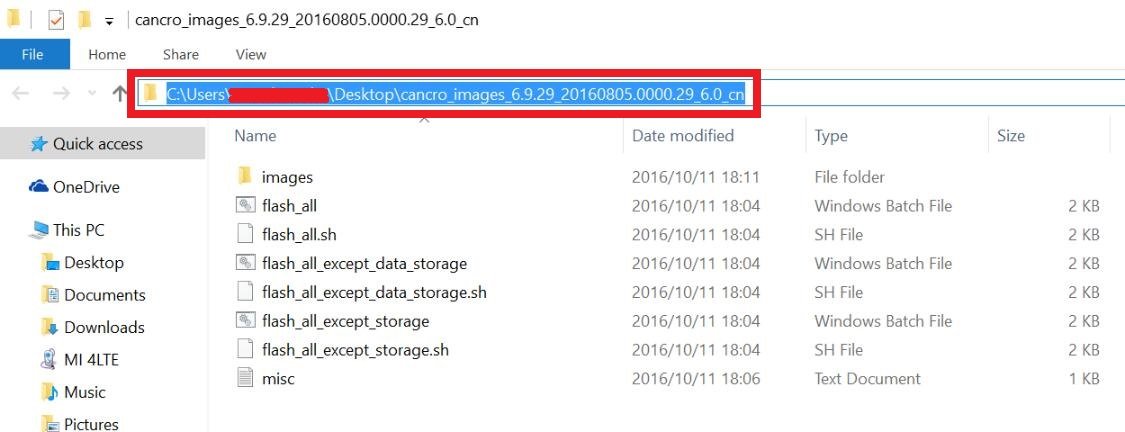
Double click on the downloaded ROM file to decompress it. Open the file folder for the decompressed ROM pack, and copy its path on the computer.
STEP 5
Decompress the OS ROM flashing tool downloaded in Step 1, and double click on it to install (if there is security warning, select ‘Run’). After installation is completed, open MiFlash.exe and paste into the address bar the ROM file folder path copied in the last step.
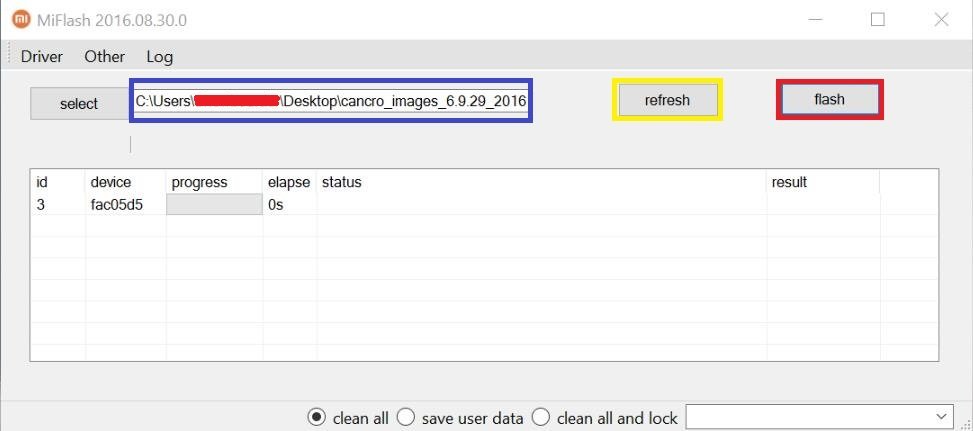
Click on the first button (circled out in yellow) to Refresh, and MiFlash should automatically recognize the device. Then click the second button (circled out in red) to flash the ROM file to the device.
STEP 6
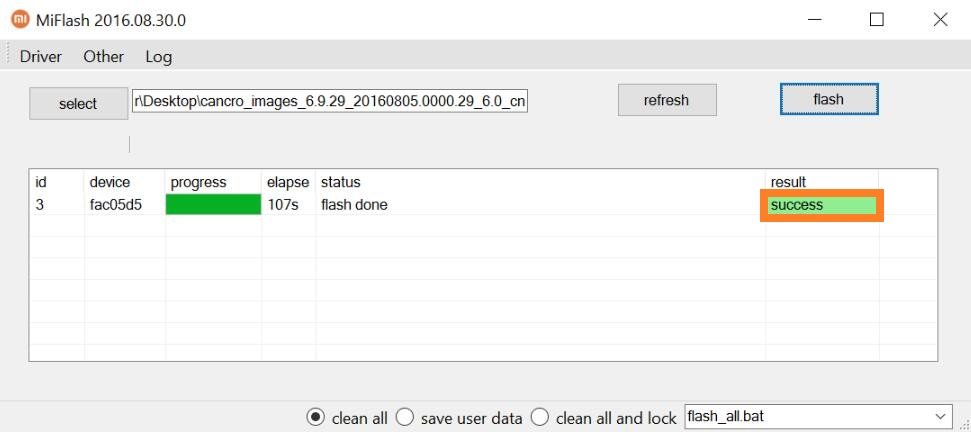
Wait until the progress bar inside MiFlash turns fully green, which means the ROM has been successfully installed. Then your device should automatically boot to the new version.
If the flashing guide could not help you, please download Mi PC Suite here
(After Mi PC Suite is installed, make sure that your phone is in fastboot mode, connect your phone to a computer, and select the correct ROM file to flash)